

Moving to NetSuite? Get Your QuickBooks or Xero Data Mapping Right
Moving from QuickBooks or Xero to NetSuite? Learn what field mapping means, what can go wrong, and how to choose and test your migration approach.

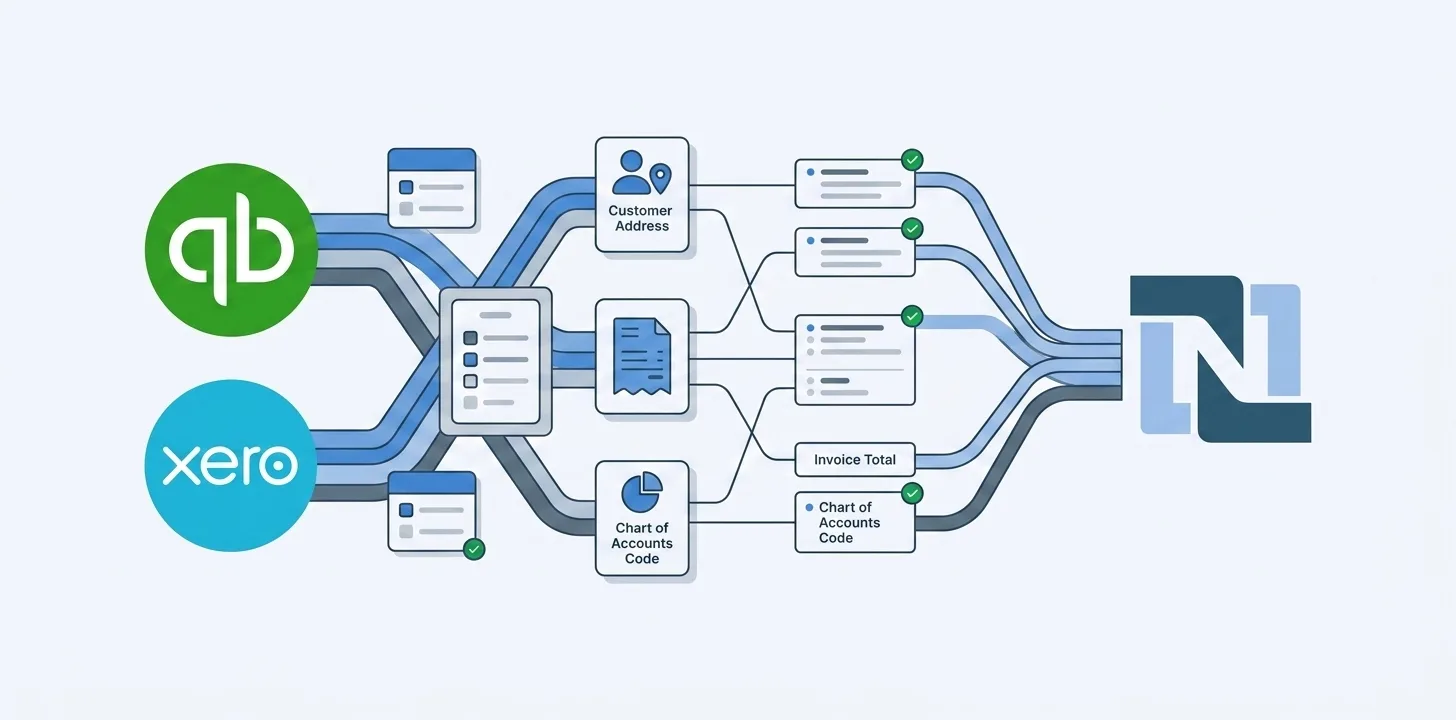
A migration can bring every record into NetSuite and still leave your finance team with reports they cannot use. Matching the sales total is only part of the check: the accounts behind that total and the payments against each invoice need to be right too.
Field mapping determines where those values and relationships go. Some mappings are straightforward, such as an invoice date. Others need a decision from the people who use the reports.
Which route you take into NetSuite decides how much of that decision-making you handle by hand. Our guide to every way to migrate QuickBooks into NetSuite sets the methods side by side, including what each one leaves you to map and reconcile yourself.
What does field mapping mean?
Suppose QuickBooks separates product sales from consulting fees. If both source accounts map to one NetSuite account, a report grouped by account will combine those amounts. The total can match even though the breakdown your team relies on has disappeared.
Combining accounts may be a deliberate part of redesigning your chart of accounts. If you still need separate figures, though, the mapping must preserve that distinction. Agree on the reporting requirement before choosing the destination account.
Customer names need care too. Before combining two customer records, confirm they belong to the same business, even if their names look alike. Xero recommends using ContactID rather than the contact name to identify a contact. For the QuickBooks side, our guide to mapping customer names in NetSuite explains why names and record identifiers need separate treatment.
What happens when a mapping is wrong?
Suppose a customer receives a $1,000 invoice and pays $400, leaving $600 outstanding. If you migrate both records, NetSuite needs to know which invoice the payment belongs to. Without that link, the invoice could still show $1,000 due while the payment sits separately.
Both records may have imported successfully. Someone working from the unpaid invoice list could nevertheless chase the customer for money they have already paid.
Check the outstanding amount and the payment application together during testing. A record count alone would not reveal this problem.
More history means more mapping work
Five years of invoices also means handling the customers, payments, and accounts those invoices refer to, including records that are no longer in use. Before choosing how much history to move, ask your finance team which older transactions they still look up and whether they need them inside NetSuite.
There are three common approaches:
- Bring what you need to start work. Move the current balances and records needed to collect payments, pay suppliers, and run the business. Keep older detail available in the previous system or an archive.
- Bring recent history as well. Your team can look up recent transactions in NetSuite. Older records stay elsewhere. An older invoice that is still unpaid must still be accounted for.
- Bring a longer history. This helps if people often need older transactions inside NetSuite. It also means more records and relationships to check.
For any of these options, agree how the starting balances and imported transactions fit together so the same amount is not counted twice. Our guide to scoping a QuickBooks or Xero migration covers what to agree before the first import.
Which migration approach makes sense?
The choice depends on how much preparation and checking your team can take on. These options overlap: a migration partner may use spreadsheets, dedicated software, or both.
Spreadsheets and NetSuite’s import tools
For a small, straightforward migration, spreadsheets can work well. They give your team a familiar way to review data and agree where it belongs.
NetSuite lets you save import mappings and review failed records. Your team still needs to prepare the files, connect related records, fix errors, and check the result.
Allow time for a second test after corrections, so you know the revised mapping works before the final import.
A consultant or migration partner
If the move also involves changing your chart of accounts or reporting structure, a partner can help work through those decisions before loading the data.
Ask the partner to specify who fixes source data, who checks the balances, and whether the quote covers another load after a failed test. Your finance team will need to allow time for any work that remains with them.
Dedicated migration software
Migration software can read data from QuickBooks or Xero, help you choose where it belongs in NetSuite, and show which records failed to transfer. This can reduce the files your team has to prepare and manage.
During a demo, ask the provider to show a failed invoice, explain the error, and retry it after a correction. Check that the retry does not create a second copy of records that already transferred.
Test a few records before moving the rest
Whichever approach you choose, start by moving a few records into a NetSuite test account. Ask your finance team to check them before you move the rest.
Use a sample that includes a partially paid invoice and sales from each account you need to report separately. Check that:
- The invoice belongs to the right customer.
- The payment is applied to that invoice and the remaining amount agrees with the source.
- Sales appear under the intended accounts in the NetSuite report.
Resolve any differences and repeat the test before loading the remaining records. Once the full load is complete, reconcile the migrated transactions and balances before signing off.
How SuiteMigration helps
SuiteMigration brings your QuickBooks or Xero data into one place for review. Your team can choose the matching NetSuite accounts, send a few records, and see which ones transferred or failed. See how SuiteMigration works.
Your consultant can manage the load while your finance team reviews the account choices and checks the resulting balances.
If you are planning a QuickBooks or Xero migration, talk to us about your mapping questions. We can start with the records you are concerned about, how they should appear in NetSuite, and which record types your project needs to support.
Frequently asked questions
What is field mapping in a QuickBooks or Xero to NetSuite migration?
Field mapping defines where source values belong in NetSuite. An invoice date may have a straightforward destination, while accounts and customer references need more care. The choices determine how transactions appear in reports and which records they connect to.
Can two source accounts map to one NetSuite account?
That may be a deliberate choice when redesigning your chart of accounts. A report grouped by the destination account will combine those amounts, though. If your finance team still needs separate product sales and consulting figures, preserve that distinction in the mapping.
Why can an imported invoice show the wrong outstanding amount?
One possible cause is a missing payment application. A $1,000 invoice with a $400 payment should have $600 outstanding. If the invoice and payment transfer without being linked, the invoice may still show $1,000 due. Check the payment application as well as the imported amounts.
Do we need to migrate all our historical transactions?
Choose the history your team needs to use in NetSuite, with older detail retained in an accessible archive or the previous system where appropriate. Account for unpaid invoices even when they predate your chosen cutoff, and agree how imported transactions fit with starting balances to avoid counting amounts twice.
What should we check in a test migration?
Include a partially paid invoice and sales from the accounts you need to report separately. Check the customer reference, payment application, remaining amount, and sales breakdown. Resolve differences before the full load, then reconcile the migrated transactions and balances before signing off.