

How to Map QuickBooks Company Name to NetSuite
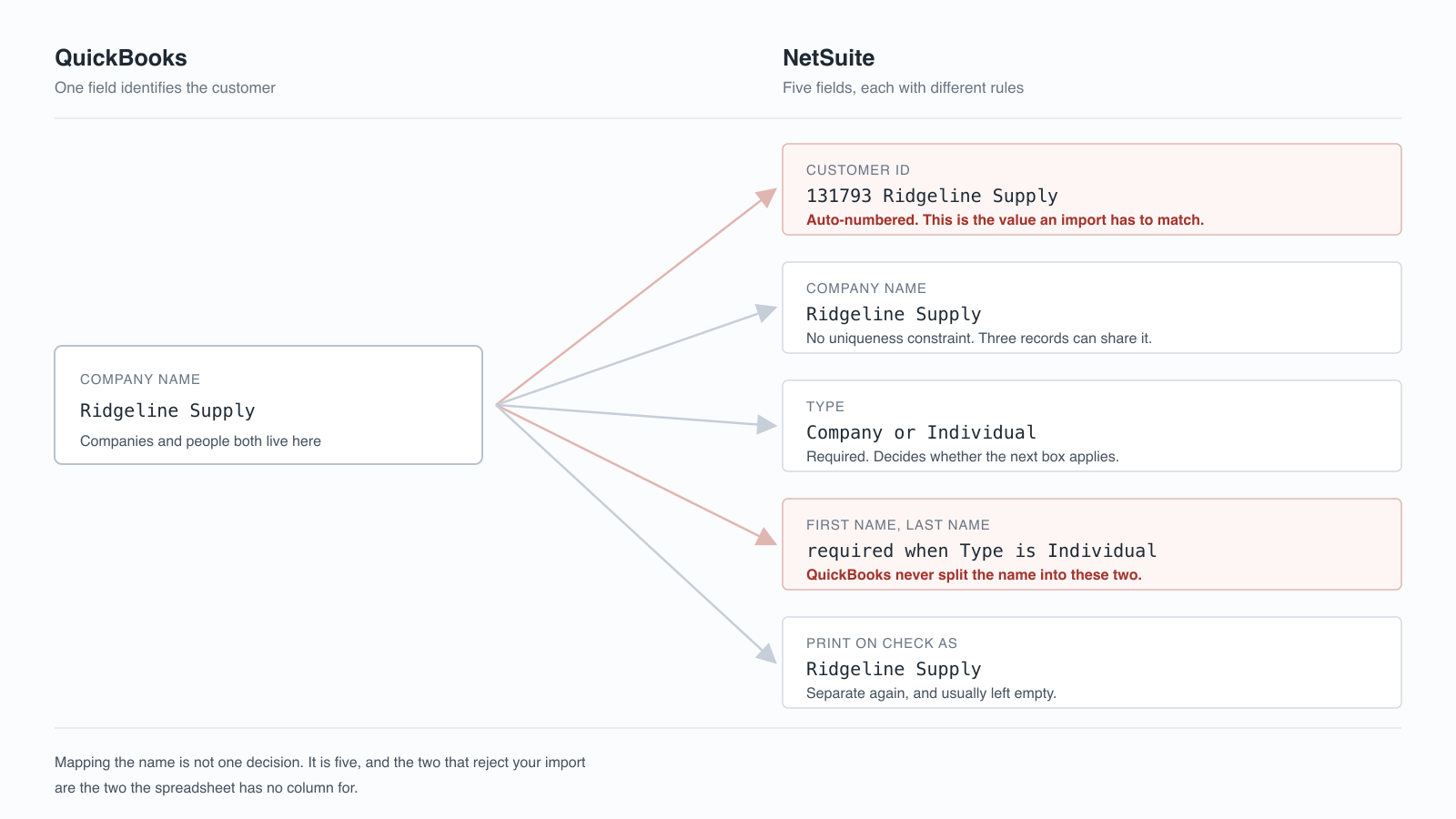
QuickBooks stores one name for a customer. NetSuite stores an auto-numbered Customer ID, a company name with no uniqueness rule, a Company or Individual flag, and first and last name fields QuickBooks never split. Which of those your import lands in decides whether it works.

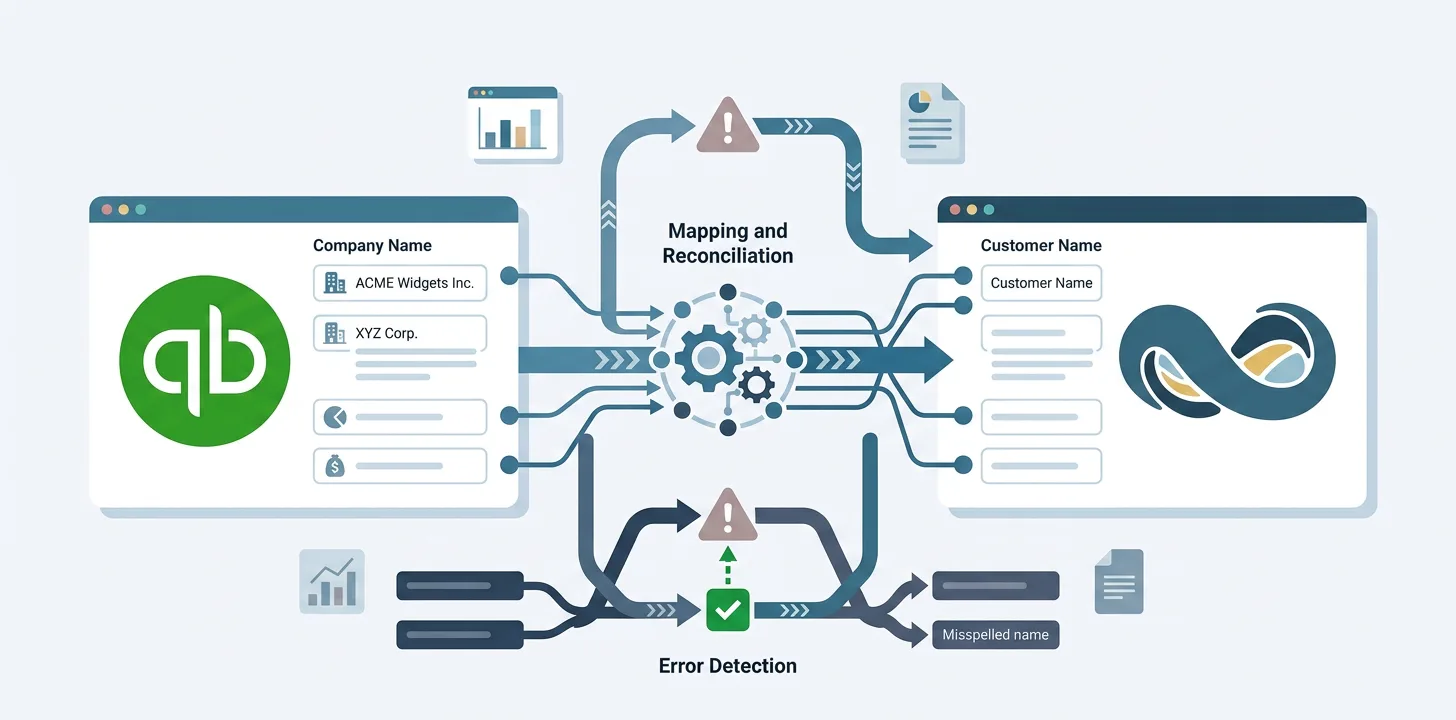
Of all the mappings in a QuickBooks to NetSuite migration, this one looks like the easy one. QuickBooks has a Company Name. NetSuite has a customer name. Point one at the other and move on.
For most of your customer list that is exactly what happens, and it is worth saying so plainly: if your customers are all companies, all uniquely named, and nothing else in the migration refers to them by name, this genuinely is a one-line mapping.
Three groups of records break that. The ones that are people rather than companies. The ones whose names are not unique. And every record that gets referenced by name later, which in practice means every invoice, payment and credit memo you are about to import. Between them they produce the duplicate customers, the rejected rows, and the reports that never quite tie.
What follows is a NetSuite sandbox, with the record IDs and error strings as they came back.
What NetSuite stores instead of a name
QuickBooks Company Name is one field doing one job. NetSuite spreads the same job across several fields that do not behave alike.
Here is a customer created by importing a file whose only name column was Company Name:
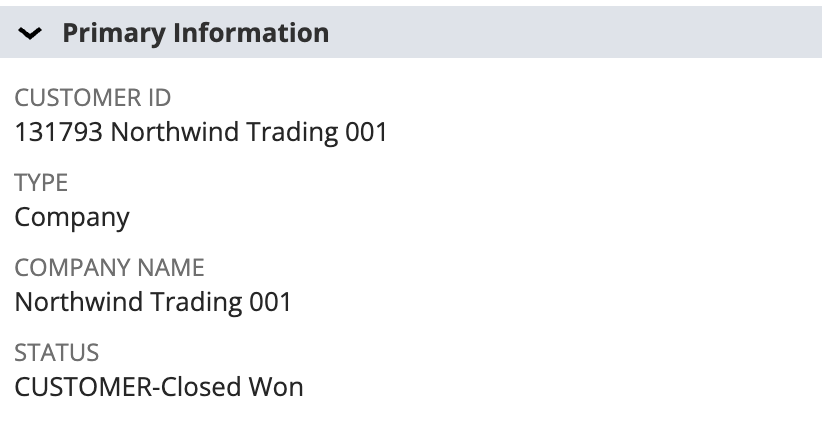
Company Name is what was mapped. Customer ID is what NetSuite generated, and it carries the prefix 131793 because auto-numbering is enabled on customers in this account. The name you mapped is on the record. It is not the record’s identifier.
The name is not the identifier
That distinction has no consequences until something refers to the customer. Then it has all of them.
In a separate import of 250 invoices, each naming its customer exactly as it appears in the Company Name field, every single row was rejected:
Invalid entity reference key Northwind Trading 002.Northwind Trading 002 existed. It had imported successfully minutes earlier, and it was sitting in the customer list under precisely that name. The invoice import could not use it, because the entity reference key is 131793 Northwind Trading 001, not Northwind Trading 001.
This is the cost that arrives late. The customer import succeeds, you tick it off, and the failure surfaces when you get to transactions, by which point the customers are already in NetSuite with identifiers your spreadsheet has never seen. The broader pattern of import failures that only appear downstream is worth reading alongside this.
Duplicates: what NetSuite actually does
The received wisdom is that NetSuite enforces uniqueness on customer name, and that duplicates get merged. Neither is true.
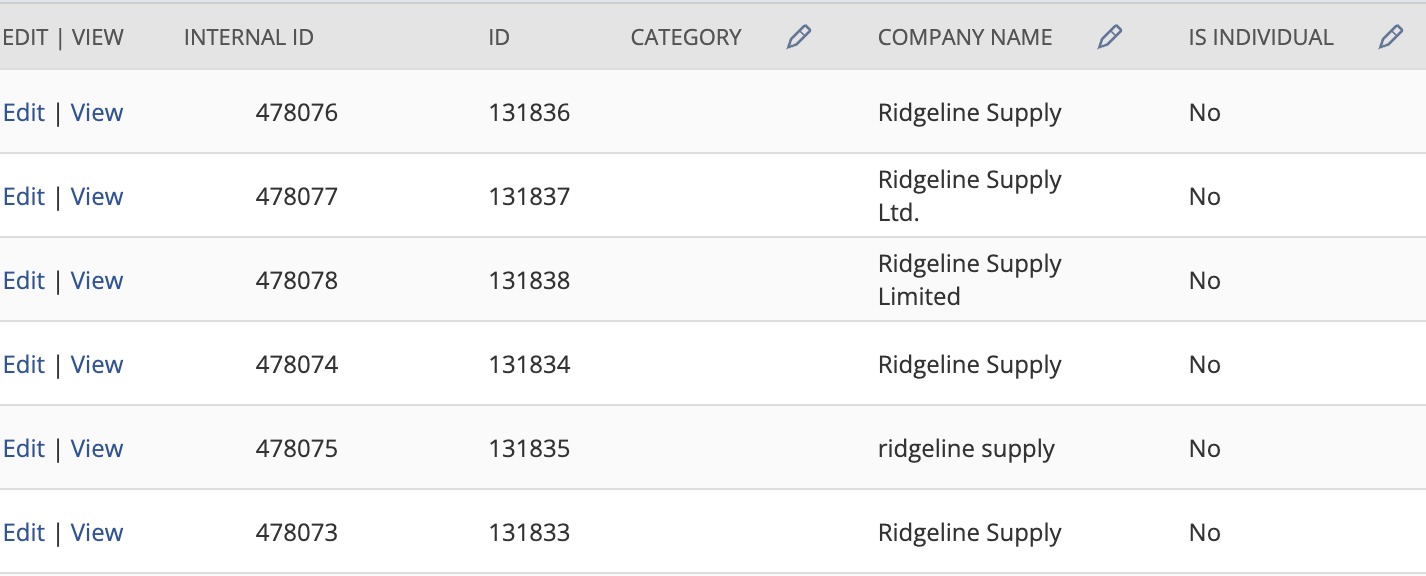
Six customers were imported in one file: two named Ridgeline Supply, one ridgeline supply in lowercase, one Ridgeline Supply with a trailing space, plus Ridgeline Supply Ltd. and Ridgeline Supply Limited.
The import response was one line:
All records imported successfully.Two things happened there. Three records now share the name Ridgeline Supply, at IDs 131833, 131834 and 131836, because NetSuite trimmed the trailing space off the fourth row and turned it into an exact match. You did not author that duplicate. The import created it by cleaning up your data.
And case is preserved rather than normalised. ridgeline supply at 131835 is its own customer, which will sort separately in every list and report.
NetSuite does have a feature for this. It is called Duplicate Detection & Merge, it is switched off in this account, and the important word is feature. Merging duplicates is something you enable and then run deliberately against records you have reviewed. It is not something an import does on your behalf, and nothing about the customer name field prevents duplicates from being created in the first place.
Blank names, and the record that is a person
QuickBooks will happily save a customer with a contact and no company name, and it will happily store a person’s name in the Company Name field. NetSuite accepts neither quietly.
Four records were imported: two flagged as companies with the Company Name column left empty, and two flagged as individuals carrying only a company name. All four were rejected, with two different messages:
Please enter value(s) for: Company Name
Please enter value(s) for: First Name, Last Name
The first is what you would expect. The second is the trap.
Delta Freight was in the Company Name column, and the record was flagged as an individual. NetSuite did not fall back to the company name, did not warn, and did not use it. It asked for First Name and Last Name, which the file did not have, because QuickBooks had never split the name into two fields.
So a QuickBooks record holding a person in Company Name has two routes and both are wrong by default. Flag it as a company and a human being becomes a company in your CRM forever. Flag it as an individual and the row dies on an error that says nothing about the actual problem. The decision has to be made in the source data before export, and the error message will never tell you that.
What the documentation says about name references
Oracle is explicit about the identifier question. The general CSV file conventions page states that you can specify name references in a CSV file, but that reference types such as External ID or Internal ID are preferable, and that values used as name references must be written exactly as they appear in the record’s dropdown lists. It also has a section on the effects of auto-generated numbers during imports, which is the mechanism behind the rejection above.
Read plainly, that is the documentation telling you not to key your migration on the field this article is about. Map Company Name because you want the name on the record. Do not map it because you need something to match on.
What to check before you map the name field
- Check whether auto-numbering is on for customers, at Setup > Company > Auto-Generated Numbers. If it is, the Customer ID will not equal the company name, and nothing downstream can reference customers by name.
- Give every source customer an External ID before you export, and reference customers by that everywhere else in the migration. This is the single decision that prevents the largest category of failure.
- Count exact duplicates in the source, then count them again after trimming whitespace. The second number is the one that matters, because NetSuite trims for you.
- Decide the case convention and apply it in the source. NetSuite will not normalise it, and mixed case means duplicate-looking records in every report.
- Separate people from companies before export, and split their names into first and last. A person filed under Company Name cannot be fixed on the NetSuite side of the import.
- Decide the rule for blank company names up front, whether that is falling back to the contact name or an explicit placeholder, rather than letting each record fail individually.
The same reasoning applies to the other fields you are about to match up, and the full field-by-field mapping between QuickBooks or Xero and NetSuite covers the rest of them.
How SuiteMigration handles it
SuiteMigration reads QuickBooks or Xero directly and creates customers through the NetSuite API, so the name fields are populated deliberately rather than matched by column heading.
The individual and company split is handled explicitly: the customer payload sets isPerson, and where a record is a person it carries firstName, middleName and lastName separately from companyName, along with printOnCheckAs. That is the mapping that produces Please enter value(s) for: First Name, Last Name when it is done by hand, and it is decided per record rather than per file.
Every record is pushed with an externalId derived from the source system, and transactions reference customers by that identifier rather than by name. This is why an auto-numbered Customer ID never becomes a problem: nothing in the migration depends on the display name matching.
We do not set every field NetSuite offers. Customer status, for example, is left alone, so NetSuite applies its own default. Where a value has to be supplied that the source system has no equivalent for, it is set in code, identically on every run, rather than being typed into a wizard by whoever ran the import that day.
Frequently asked questions
How do I map QuickBooks Company Name to NetSuite?
Map it to the NetSuite customer's Company Name field, and set the Type field alongside it so NetSuite knows whether the record is a company or an individual. What you should not do is rely on that name as an identifier for anything else in the migration, because NetSuite's Customer ID is a separate field and is usually auto-numbered.
Does NetSuite allow duplicate customer names?
Yes. The customer name field has no uniqueness constraint. In a test import, three customers with the identical name Ridgeline Supply were all created as separate records and the import reported that all records imported successfully. NetSuite offers a Duplicate Detection & Merge feature, but it is something you enable and run deliberately, not something the import applies.
Why does my NetSuite customer import say "Please enter value(s) for: Company Name"?
Because the record is flagged as a company and the Company Name column is empty. QuickBooks lets you save a customer with only a contact name, so these records exist in almost every source dataset. Decide the fallback rule before you export, whether that is the contact's name or an explicit placeholder.
Why does NetSuite ask for First Name and Last Name when I have a company name?
Because the record is flagged as an individual, and for individuals NetSuite requires the person's name in separate first and last name fields. It will not fall back to Company Name. If QuickBooks stored the person's full name in one field, that name has to be split before the import, not after.
Why does my invoice import say "Invalid entity reference key" when the customer exists?
Because the customer's entity reference key is not its company name. With auto-numbering enabled, the Customer ID looks like 131793 Northwind Trading 001 while the company name is Northwind Trading 001, and an import matching on the latter finds nothing. Reference customers by External ID or Internal ID instead.
Should I map QuickBooks customers by name or by ID?
By ID. Assign every source customer a stable External ID before exporting, and use it for every transaction that references them. Names change, duplicate, gain and lose punctuation, and get prefixed with auto-generated numbers on arrival. An External ID does none of those things.