

NetSuite CSV Import Templates (with the Gotchas Marked)
Four CSV import templates for NetSuite customers, vendors, items and vendor bills. Each one is built around a specific import failure: the required field your file does not contain, the column that lands on the header instead of the line, the date that passes validation and is still wrong, and the customer name NetSuite will not match on.


NetSuite does not ship a CSV template per record type. The Import Assistant takes whatever columns your file happens to have and matches them to fields by name, which means the file is yours to design and the design is where migrations go wrong.
The four templates below are not field lists. A field list is easy to produce and does not help, because almost nothing that breaks a CSV import is about which columns exist. It is about what each value has to resolve to inside NetSuite, and a spreadsheet has no way of expressing whether it will.
So each template is built around one failure, and each section explains the failure it is built around.
The four templates
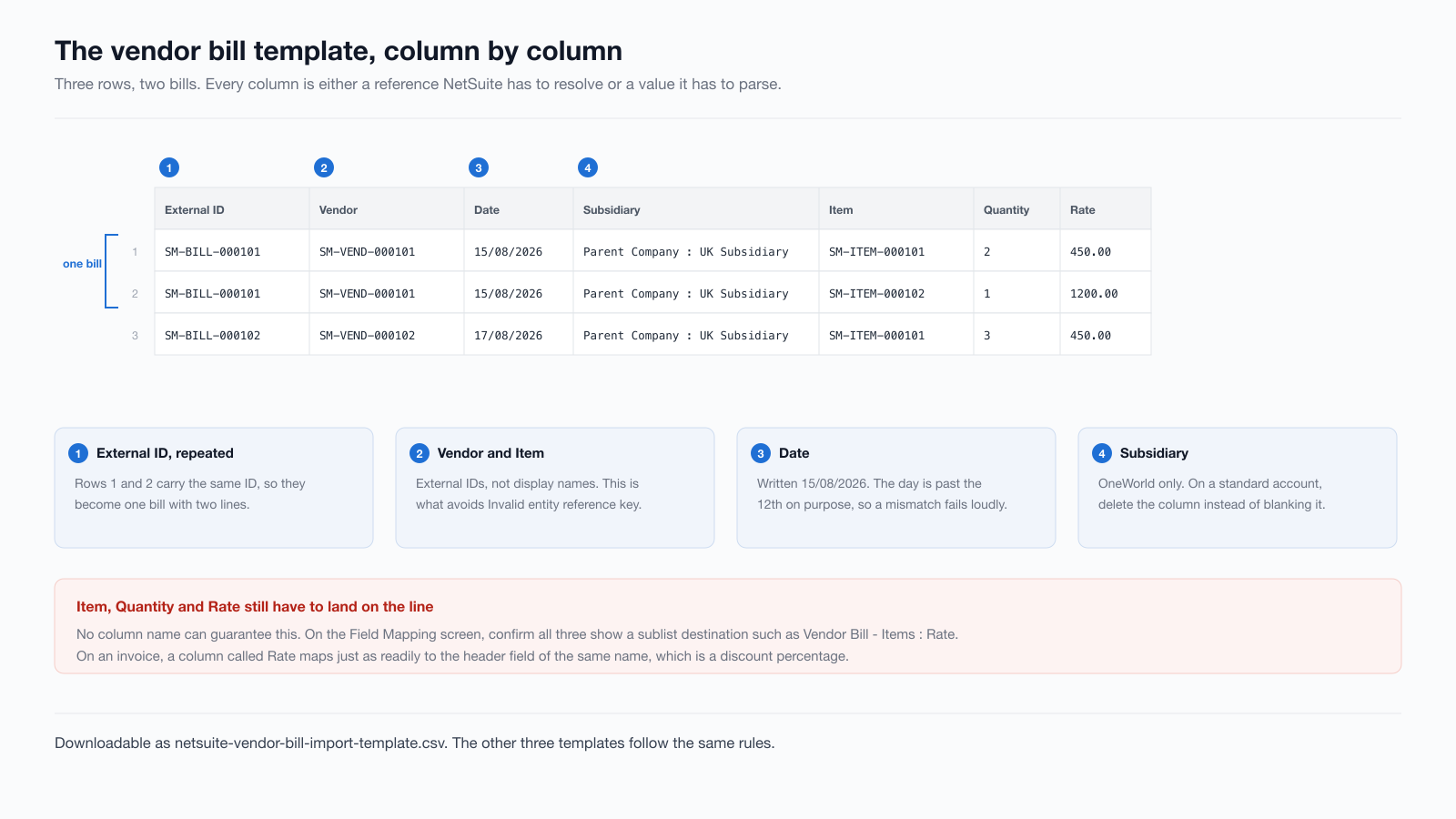
They use a Parent Company : UK Subsidiary path in the Subsidiary column and DD/MM/YYYY dates. Both need changing to match your account before you import anything, and the sections below explain why those two columns are worth more attention than the rest of the file put together.
The Subsidiary column assumes OneWorld. Subsidiaries only exist on NetSuite OneWorld, so on a standard account the field is not shown and not required: delete the column rather than leaving it blank, because a column pointing at a field the account does not have is one more thing for the Assistant to guess at. Everything else in all four templates is the same either way.
Every reference is an External ID, never a name
The first column of all four templates is External ID, and in the bill template the Vendor and Item columns carry external IDs rather than display names.
This is the single change that prevents the most rejected rows. Oracle’s CSV file conventions are direct about it: you can use name references, but reference types such as External ID or Internal ID are preferable, and any name used as a reference has to be written exactly as it appears in the record’s dropdown lists. There is a separate section on how auto-generated numbering affects name references.
What that reads like in practice is worse than it sounds on the page. In the sandbox session behind our post on spreadsheet-driven migrations, an invoice file failed every row with:
Invalid entity reference key Northwind Trading 002.That customer existed. It had imported minutes earlier, 40 of 40, and it was sitting in the customer list under exactly that name. The rejection tells you the key did not resolve. It does not tell you why, and there is no version of the file you can inspect to find out.
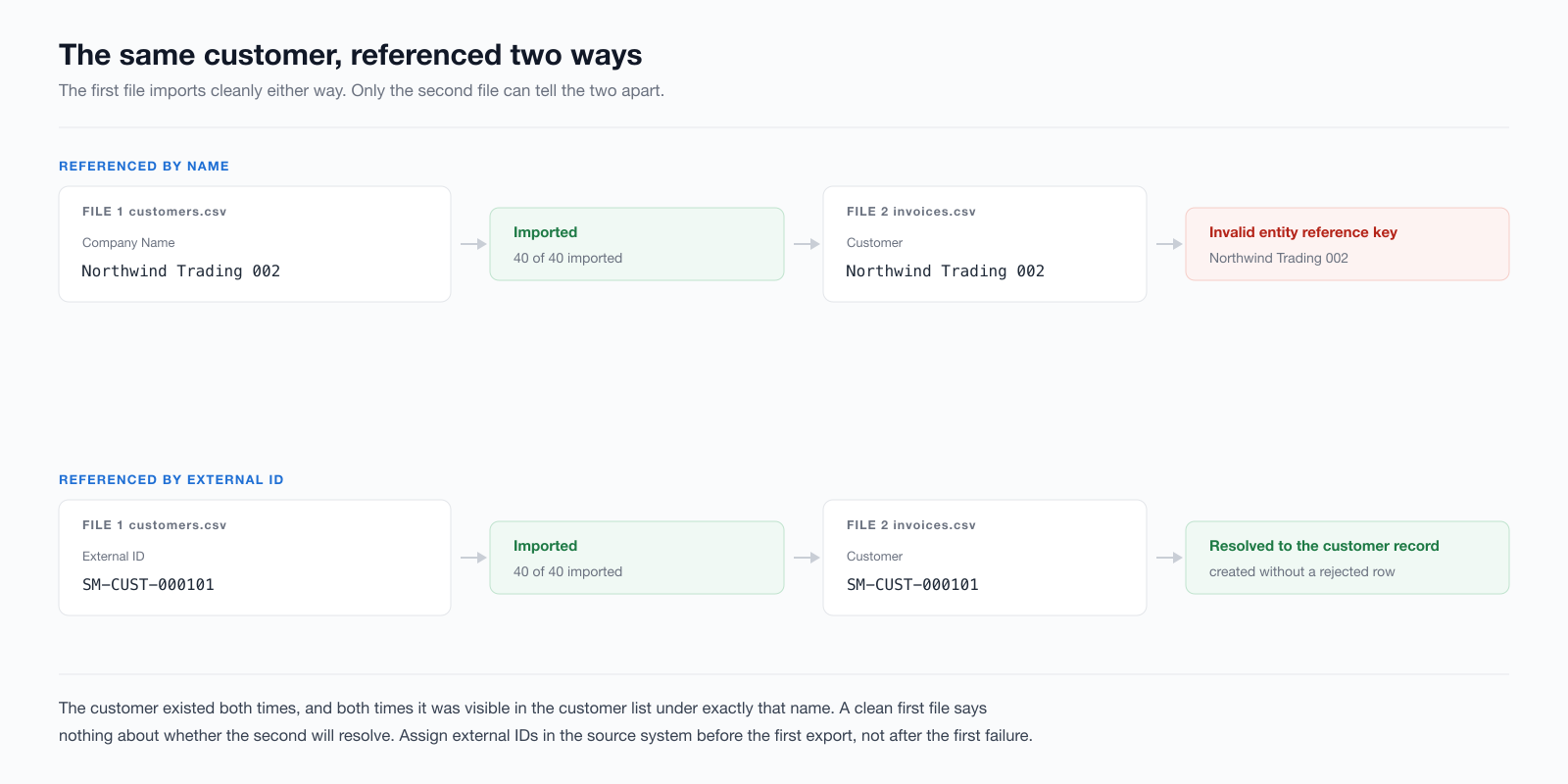
The fix has to happen before the first export, not after the first failure. Give every source record a stable external identifier while it is still in QuickBooks or Xero, then use that identifier everywhere a later file needs to point at it. Retrofitting external IDs after the customers are already in NetSuite means harvesting internal IDs and splicing them back into every dependent file.
The required field your file does not have
Open the customer template and you will find an Individual column with No in it. Nothing in QuickBooks or Xero produces that column. It is there because NetSuite asks for it.
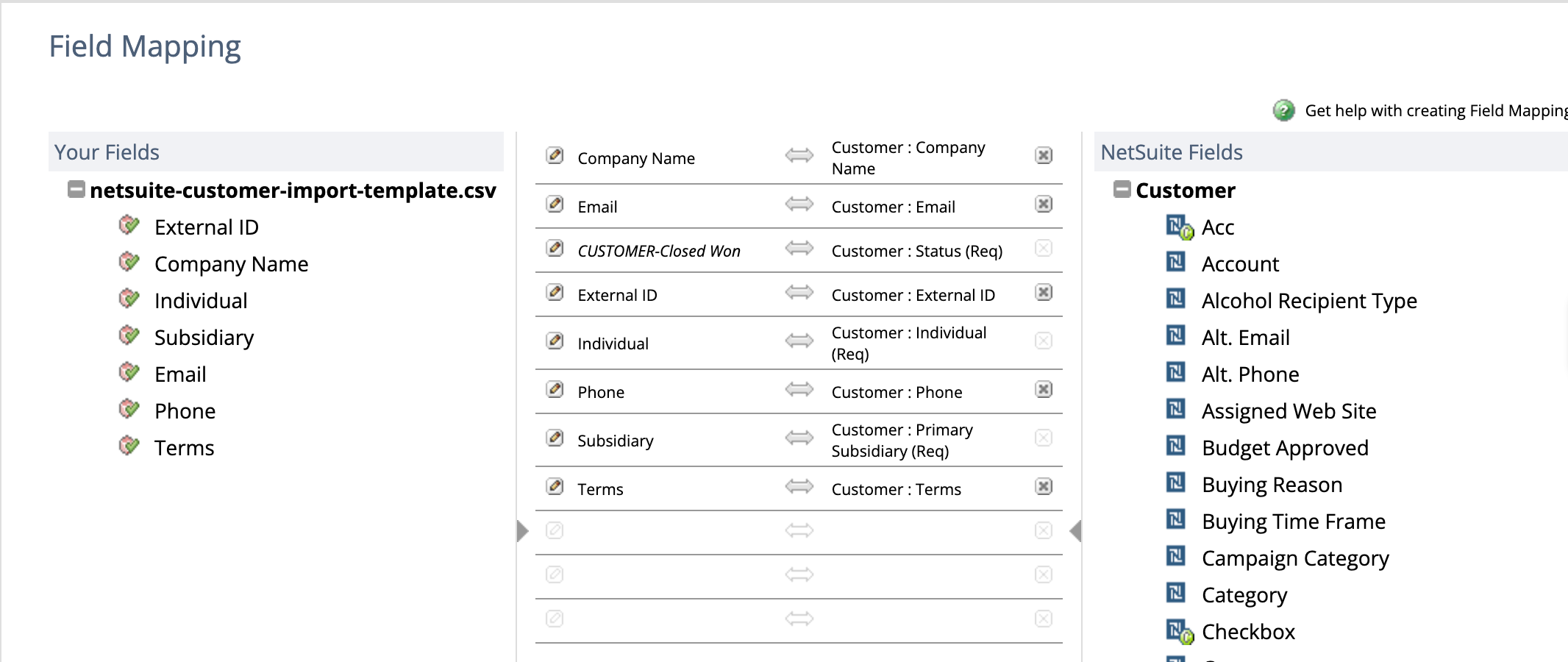
On the Field Mapping screen in that same session, Customer : Individual (Req) appeared marked required with nothing on its left side. The Assistant lets you continue anyway. What usually happens next is that somebody types a value onto the wizard screen to get the job through, and it imports.
That is a quieter problem than a rejected row. The file you exported, reviewed and archived is now not a record of what you imported, because part of the payload was supplied by whoever ran the job that afternoon. Hand the same CSV to a colleague next month and the result can differ, with nothing in either file to show why.
Putting the value in a column fixes it. Read the whole mapping screen, not only the rows you supplied, and add a column for every field ending in (Req) that has an empty left side. Anything shown in italics on that screen is a value NetSuite invented rather than one your file provided.
A column called Rate is not the field called Rate
The bill template has Quantity and Rate sitting next to Item, and those three belong on the line, not on the bill.
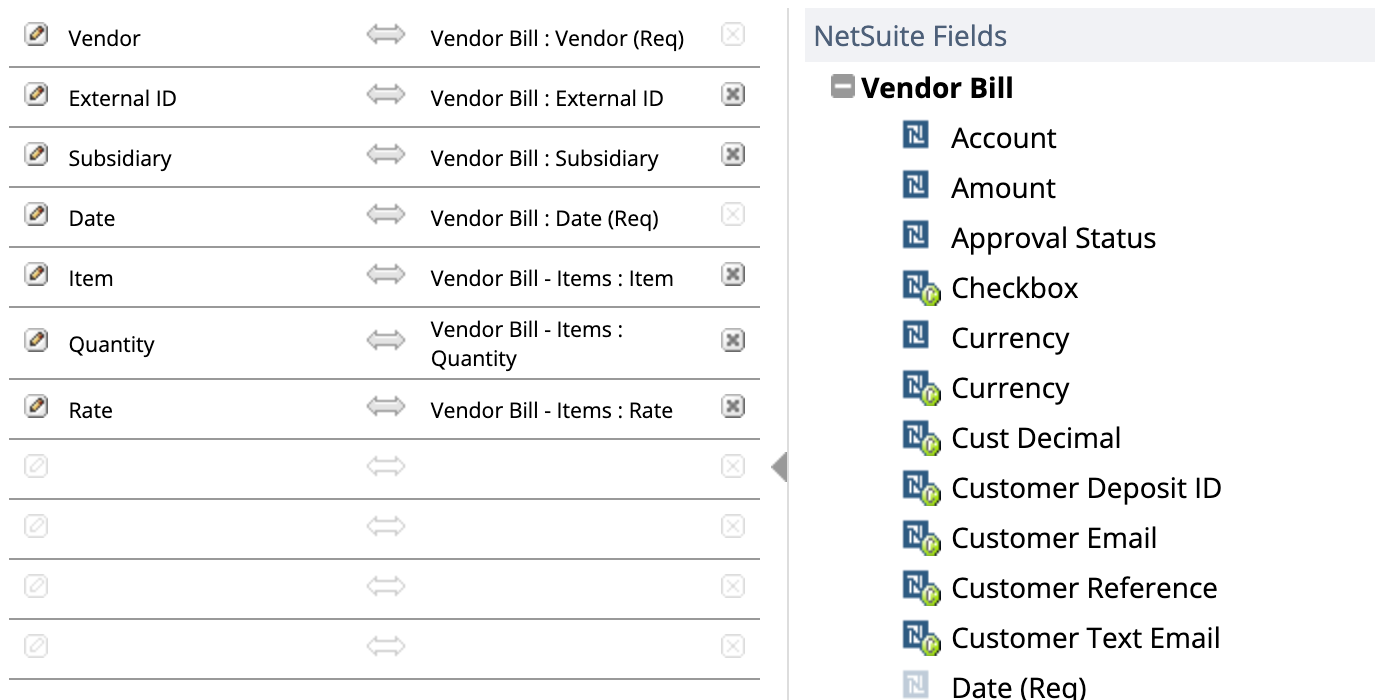
Uploading this template to a Vendor Bill import, NetSuite agrees. Item, Quantity and Rate all land on Vendor Bill - Items, the line sublist, with no intervention.
That is not a guarantee, it is one record type behaving well. On the invoice file in that session, Item and Quantity were matched to Invoice - Items, correctly, while Rate was matched to Invoice : Rate, a header field whose internal name turned out to be discountrate. So 241 rows of perfectly ordinary prices were routed into a header-level discount percentage, and where a column is mapped to a header field there is nothing routing those values to the line at all.
Identical column names, a different record type, and the opposite result. The column was called Rate both times. Whether NetSuite reads that as the line rate or a header discount is a property of the record you are importing into, not of your file, and nothing in the file can tell you which you are getting.
There is no column name that immunises you against this, which is why it is a section rather than a template feature. Before clicking through the mapping screen, check which side of the sublist each column landed on. Invoice : Rate and Invoice - Items : Rate read almost identically and behave nothing alike.
The bill template also repeats the same External ID across two rows to express a bill with two lines. Confirm on the mapping screen that Item, Quantity and Rate are all showing a sublist destination before you run it on anything larger than a test file. It costs one glance, and it is the only place the answer is visible.
Dates, and the one that fails silently
The templates use 15/08/2026. The day is deliberately past the 12th.
An account set to read DD/MM/YYYY rejects a US-formatted 8/15/2026, because there is no month 15. That produced 230 errors on a 250-row file, all of them Invalid Field Value 8/15/2026 for the following field: trandate, and it stopped the job before a single record was attempted. Loud, immediate, easy to fix.
Now take 3/4/2026. Under DD/MM/YYYY it is 3 April. Under MM/DD/YYYY it is 4 March. Both are real dates, so nothing errors, and the transaction lands a month out of position. Every date in the first twelve days of a month has this property. The year still ties. The monthly comparatives are wrong, and no report you would think to run will surface it, because there is nothing malformed to find.
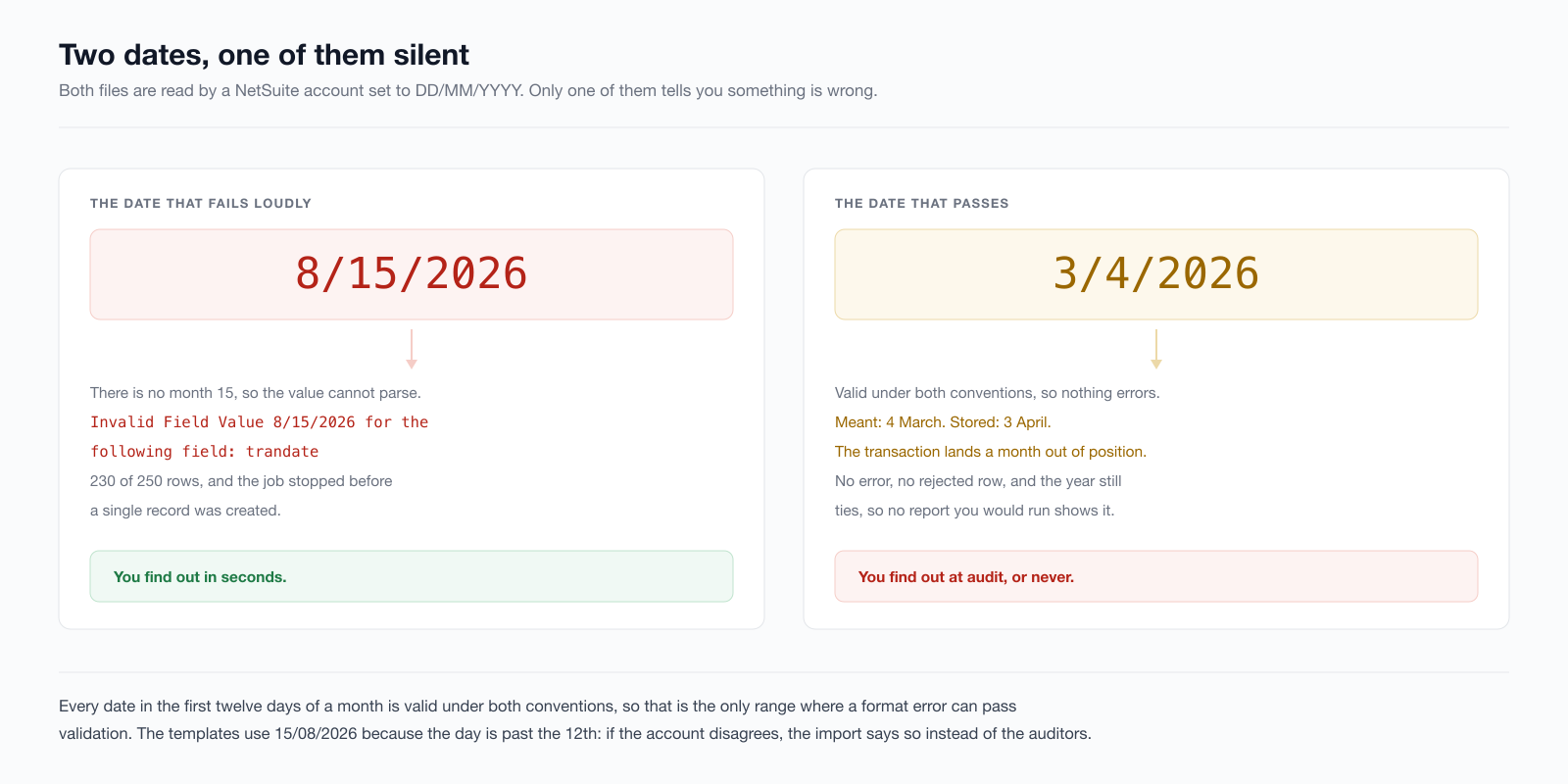
Using a day after the 12th in your test file is the cheap version of this check. If the format is wrong, the import tells you instead of the auditors.
Set the account’s date format before you export, and match it. Then spot-check a transaction dated early in a month, because that is the only range where a format error can pass validation.
What no template can fix
Two things stay hard no matter how good the file is.
The first is ordering. Customers, vendors and items have to exist before the transactions that reference them, and on the payables side it is not only bills. Vendor credits need the bills they offset. Bill payments need the bills. Each is its own record type with its own file and its own mapping screen, and a mistake in the third file invalidates the ninth without saying so.
The second is that payments cannot reference an invoice the way a person would. Oracle is specific that a payment can be associated with an invoice through the internal ID or external ID only, because the transaction ID is not unique. The invoice number is the one value a human can see on the record and the one value the payment file may not use. Get it wrong and the payment lands without its application, which leaves the invoice open even though the cash is in the bank.
Set that against the 25,000 records per import file that Oracle documents, and the shape of the work changes. A business with 4,127 customers and 217,359 transactions needs thirteen files before anything else is taken into account.
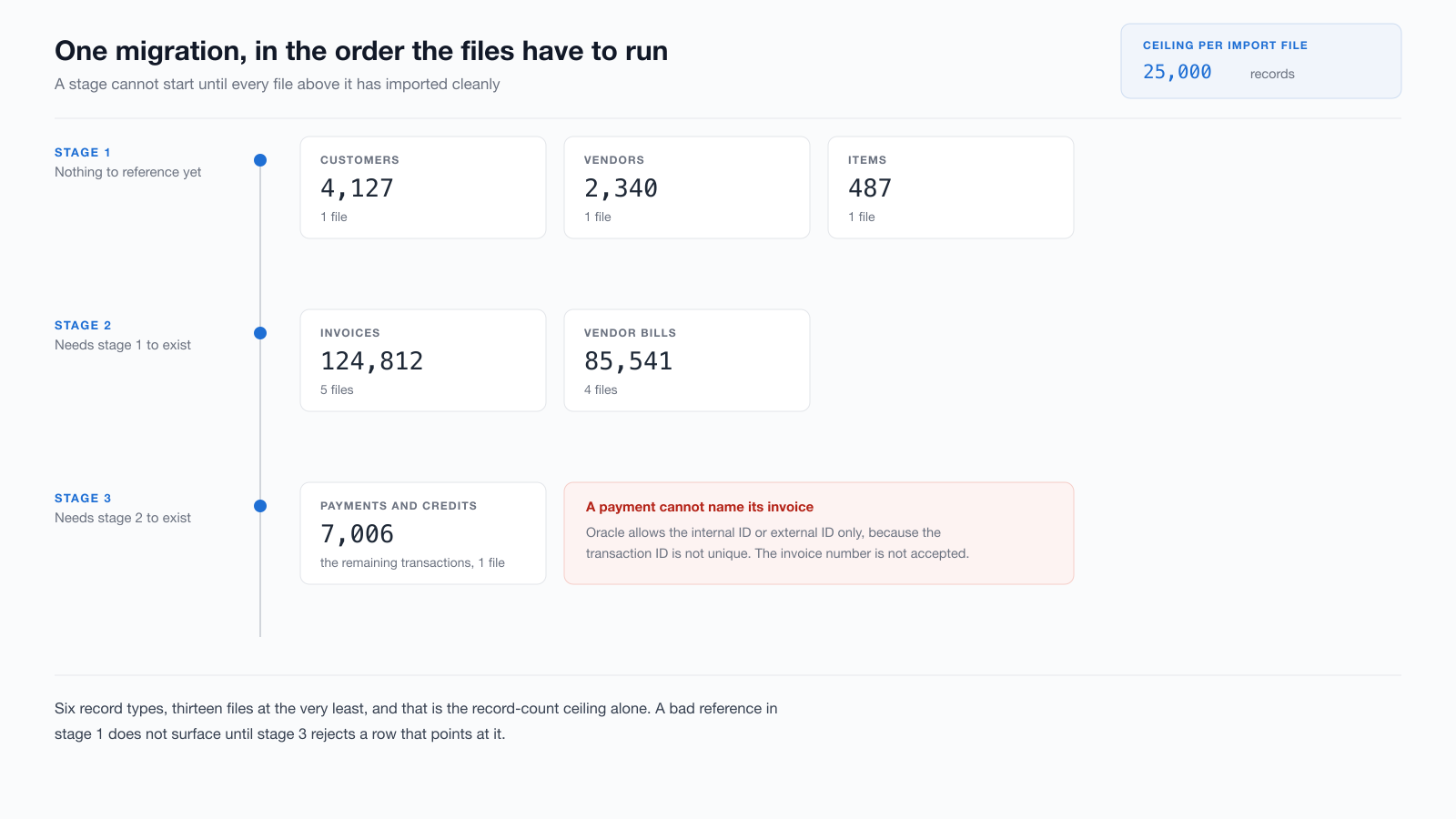
Each of those files needs checking before the next is safe to run.
Before you trust the result
Run these per file, not per migration.
- Read the entire Field Mapping screen. Italics mean NetSuite supplied the value.
(Req)with an empty left side will either fail or be filled in for you. A column that matches no field at all is not an error either: it is ignored, and this screen is the only place that shows it. - Confirm which side of the sublist each column landed on.
- Match the account’s date format, and use a day after the 12th in the test file.
- Reference by External ID, assigned before export.
- Import ten rows before importing ten thousand. Every failure here surfaces on the tenth row as readily as the ten-thousandth.
- Never read
Completeas success.Completedescribes the job finishing, not records being created. A job that rejected every row showsCompleteat100.0%, identical to one that imported every row. Only the message alongside it differs.
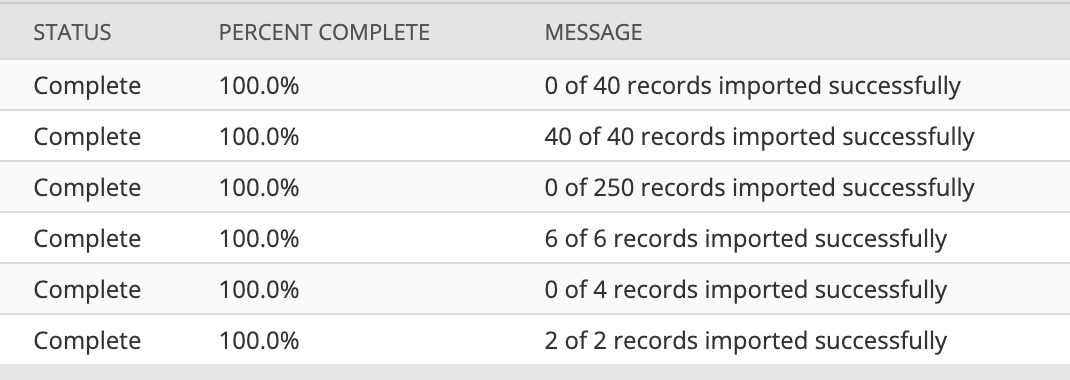
That last one matters more than the rest, because it is the check that catches what the others missed. Read the counts, then reconcile the totals in NetSuite against the source.
How SuiteMigration handles it
These templates make a spreadsheet import survivable. They do not make it small.
SuiteMigration reads QuickBooks, Xero or another NetSuite account directly and pushes into NetSuite through the API, so there is no file in the middle and no mapping screen to misread. Fields are mapped ahead of time rather than guessed from column names. Records are matched on stable identifiers rather than display names. Dates are written in the format the target account expects. Customers, vendors and items go before the transactions that reference them, because the dependency order is a property of the data model rather than something to rediscover per project.
Where NetSuite requires a value the source has no equivalent for, we supply one in code: identical on every run, reviewable, and the same for you as for the last customer.
Instead of a job reporting Complete with a count, you get a result per record, with the ability to fix and retry a single record rather than the file.
If you are working through the mapping decisions rather than the mechanics, our guide to QuickBooks and Xero field mapping for NetSuite covers what to agree before the first export.
Frequently asked questions
Where do I find NetSuite CSV import templates?
NetSuite does not publish a template per record type. The Import Assistant accepts whatever columns your file has and matches them to fields by name on the Field Mapping screen, so the file is yours to design. The four templates on this page are built around the reference and formatting rules that decide whether a row imports, rather than around the fields a particular account happens to display.
What columns does a NetSuite customer CSV import need?
At minimum, whatever the account marks required on the Field Mapping screen. In the sandbox session behind our spreadsheet-costs post, Customer : Individual was marked required and had nothing feeding it, because no such column existed in the file. Read the whole mapping screen rather than only the rows you supplied, and add a column for every field ending in (Req).
Do I need the Subsidiary column if I am not on OneWorld?
No. Subsidiaries only exist on NetSuite OneWorld. On a standard account the Subsidiary field is not shown and is not required, so delete that column from the template rather than leaving it blank. Every other column in the four templates behaves the same on either kind of account.
Should a NetSuite CSV import reference records by name or by ID?
By External ID. Oracle's CSV file conventions state that reference types such as External ID or Internal ID are preferable to name references, and that names used as references must match the record's dropdown values exactly. A customer that imported successfully and is visible under that name in the customer list can still be rejected by the next file with Invalid entity reference key.
What date format should a NetSuite CSV import use?
The format the target account is set to, which is not necessarily what your source system exported. A US-style 8/15/2026 fails outright in an account reading DD/MM/YYYY, because there is no month 15. The harder case is 3/4/2026, valid under both conventions, which imports a month out of position with no error at all.
How many records can one NetSuite CSV import handle?
Oracle documents a limit of 25,000 records per import file. Any real transaction history has to be split across several files, run in dependency order, and reconciled afterwards.
Why does my NetSuite CSV import say Complete when nothing imported?
Complete describes the job finishing, not records being created. A job that rejected all 40 of its rows shows Complete at 100.0%, identical to one that imported all 40. The only difference is the message alongside it, which reads 0 of 40 records imported successfully. Read the counts, then reconcile against the source.