

How to Map QuickBooks Class & Location to NetSuite
QuickBooks tracks a class and a location. NetSuite tracks department, location, and class. How to decide where each of your values belongs in a QuickBooks-to-NetSuite migration, and what to check before the first push.

Every migration reaches a screen where you match things on the left to things on the right. Accounts, customers, items, and then the categories you use to slice reports.
That last one looks like the easiest step and causes the most surprises, because QuickBooks and NetSuite don’t count these categories the same way. QuickBooks gives you two. NetSuite gives you three. So the step isn’t matching names, it’s deciding where each of your categories should go.
Here’s what you need to know before you make those decisions.
For a real-world account of how mapping decisions played out in a 319-record test, see our QuickBooks Online to NetSuite migration with Claude and MCP.
What QuickBooks tracks
QuickBooks Online gives you two ways to categorise a transaction beyond the account.
Classes usually cover business lines, programs, or funds. Commercial vs Residential. Retail vs Wholesale.
Locations usually cover sites, regions, or offices, but the label is yours to choose. In Settings → Advanced → Categories, the location label is a dropdown, and “Department” is one of the options. Whichever you pick, Intuit’s API still calls the field DepartmentRef.
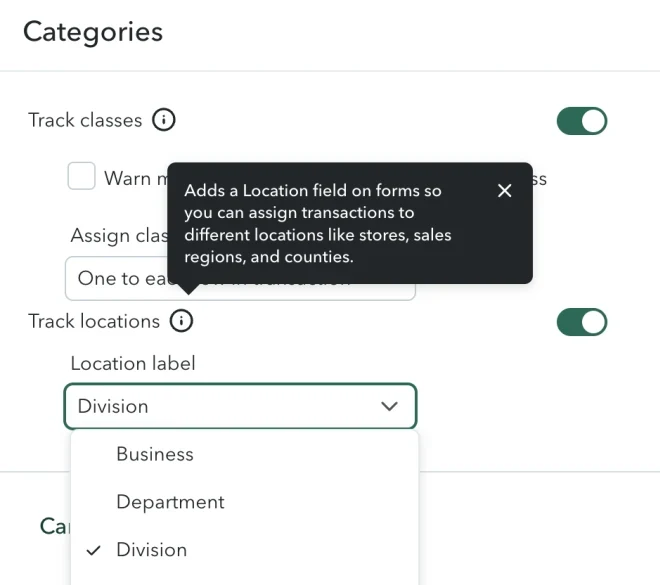
That matters more than it looks. A company can label this field “Department” while NetSuite has a genuine Department segment that is a different thing entirely. Read the values, not the label.
Two more details about how QuickBooks stores these, because both affect the migration.
A location applies to the whole transaction. One invoice, one location. You can’t put one location on the first line and a different one on the second.
A class can work either way. The “Assign classes” setting lets you pick one class for the whole transaction, or a different class on each line.
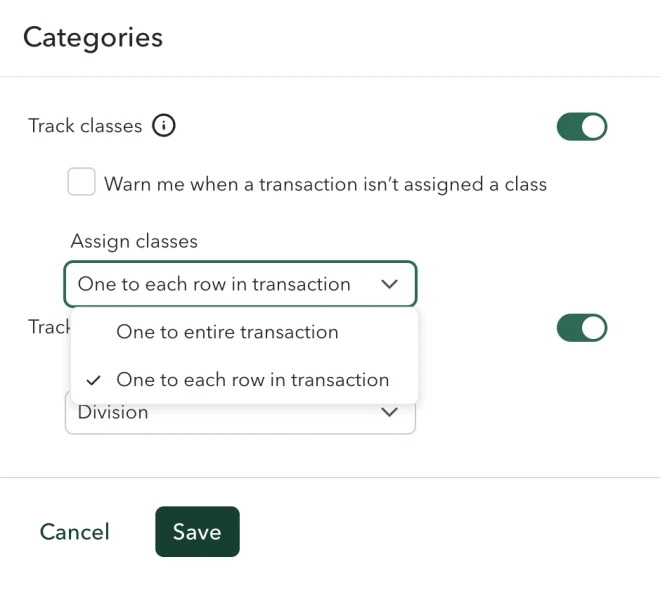
Worth checking which one your company uses before you start. It’s a two-click answer and it changes what the migration has to carry across.
What NetSuite tracks
NetSuite splits the same job across three categories instead of two.
Department covers teams or cost centres. Marketing, Engineering, Operations.
Location covers physical places. Warehouses, stores, offices.
Class is a flexible third option, often used for business lines or programs.
Each one is a separate list with its own values, and each one has its own set of standard reports: P&L by Department, P&L by Class, Balance Sheet by Location, and so on. They aren’t interchangeable. A value filed under Location will never appear on a departmental report.
| QuickBooks | NetSuite | |
|---|---|---|
| Categories available | Class, Location | Department, Location, Class |
| One per transaction | Both | All three |
| Different value per line | Class only, if enabled | All three, if enabled |
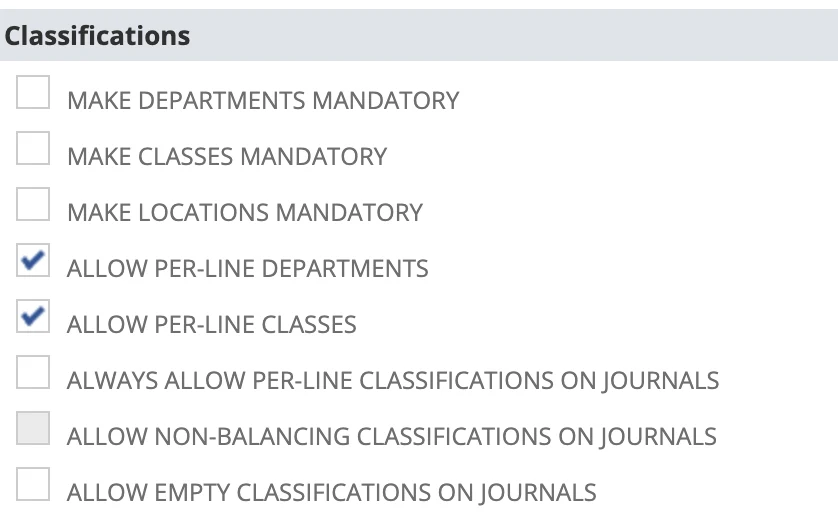
NetSuite also lets you set these on individual transaction lines, not just the transaction as a whole. Whether that’s switched on is an accounting preference.
Deciding where each value goes
This is the real work, and it isn’t a technical decision. It’s a reporting one. The same holds for account mapping, where the destination you choose decides which reports a balance can appear on.
Because QuickBooks only offered one location field, most companies use it for more than one thing. Open a typical QuickBooks location list and you’ll find something like:
Chicago, Denver, Marketing, Commercial, West Region
Those belong in different NetSuite categories. Chicago and Denver are places. Marketing is a team. Commercial is a business line. In QuickBooks they had to share one field. In NetSuite they don’t have to, and shouldn’t.
| Your QuickBooks value | Put it in NetSuite’s | So you can run |
|---|---|---|
| Chicago, Denver, West Region | Location | Reports by site or region |
| Marketing, Engineering, G&A | Department | Departmental P&L and budgets |
| Commercial, Residential | Class | Reports by business line |
Two rules that save a lot of pain.
Go by how the value is used, not what the field is called. If the field is labelled “Division” but holds city names, those are locations. Filing them under Department because of the label means the location reports stay empty and nobody notices until quarter end.
Ask which report someone reads at month end. That report tells you which NetSuite category the values need to be in. If nobody can name the report, the mapping doesn’t matter much, but usually somebody can, immediately.
Decide this before you migrate. Moving a value from Location to Department later means correcting every transaction that used it, and older ones may sit in closed periods.
Watch out for: NetSuite may refuse to save without a location
One practical thing that catches people out, and it has nothing to do with your mapping being wrong.
If your NetSuite account uses Multi-Location Inventory, location becomes required on the transaction. Open a standard invoice and you’ll see the asterisk on Location while Department and Class sit there optional.
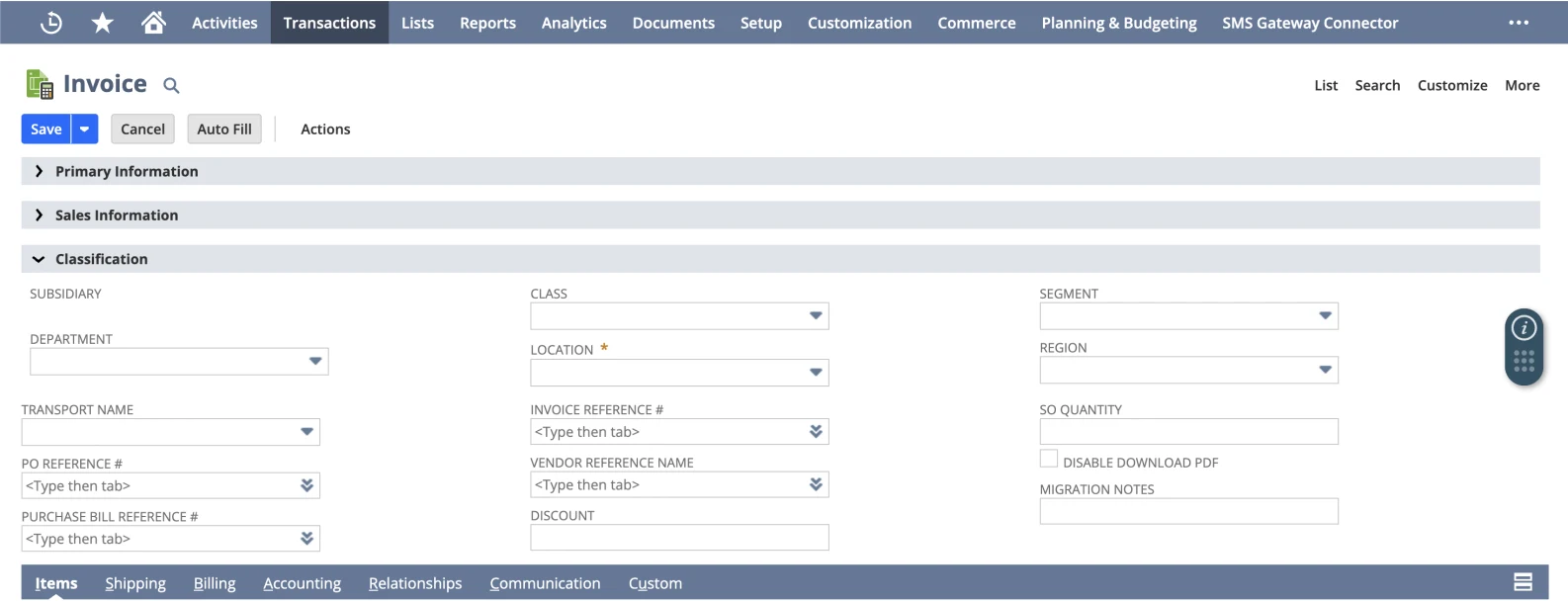
Try to save without it and nothing lands. NetSuite refuses the record with:
Please enter value(s) for: Location
So if your QuickBooks data has transactions with no location, or your mapping leaves some values unmapped, those transactions have nowhere to land. That’s a migration blocker, and it shows up on the first push rather than at the end.
A custom form can go further and require location on every line too. That’s a form-level setting, not an account-level one, which means two NetSuite accounts with identical features can accept or reject the same migration differently. Checking your preferences won’t reveal it. Open the actual form your migration will use and look at which fields carry asterisks.
The safe default is to write these values in both places, on the transaction and on every line. It costs nothing, it satisfies either form, and it means every NetSuite report has what it needs whichever level it reads from.
One naming detail
NetSuite shows nested values as a full path, separated by colons:
Australia : Queens Town : Atlanta westYour QuickBooks values are probably flat, just “Atlanta west”. When you build the mapping, match the full NetSuite path rather than the last part, or the value won’t be found.
Before you start
A short list:
- Check the QuickBooks class setting. One per transaction, or one per line?
- Check whether NetSuite uses Multi-Location Inventory. If so, location is required on transactions and unmapped values will block the push.
- Open the actual transaction form your migration will use and note which classification fields are required, at header and at line level.
- Leave “Make Departments / Classes / Locations Mandatory” switched off while you migrate. Older transactions often have gaps, and a mandatory field turns each gap into a rejected record.
- Create your department, location, and class lists in NetSuite first, before migrating transactions that reference them.
- Get the mapping signed off by whoever reads the monthly reports.
How to check it worked
Don’t check by opening a transaction. A category can look fine on the record and still be missing from the reports.
Check the way the reports will be read:
- Run P&L by Department, P&L by Class, and the location equivalents in NetSuite.
- Run the matching reports in QuickBooks for the same period. For whole statements rather than one segment, rebuilding the statements yourself is the mechanical way to tie them out.
- Compare them.
If a NetSuite report comes back empty or lumps everything under “unassigned”, the values didn’t reach the right place. If it’s populated but the totals differ from QuickBooks, some values probably went to the wrong category, which is a mapping decision to revisit rather than a data problem.
Getting this right is what makes the difference between a migration that balances and a migration people can actually run their reports on.
How SuiteMigration handles it
Because a single QuickBooks list often needs to end up in two different NetSuite categories, SuiteMigration presents the same source list on both a Locations tab and a Departments tab. You map each value on whichever tab it belongs to, so place names can become NetSuite locations while team names become NetSuite departments, without editing anything in QuickBooks first.
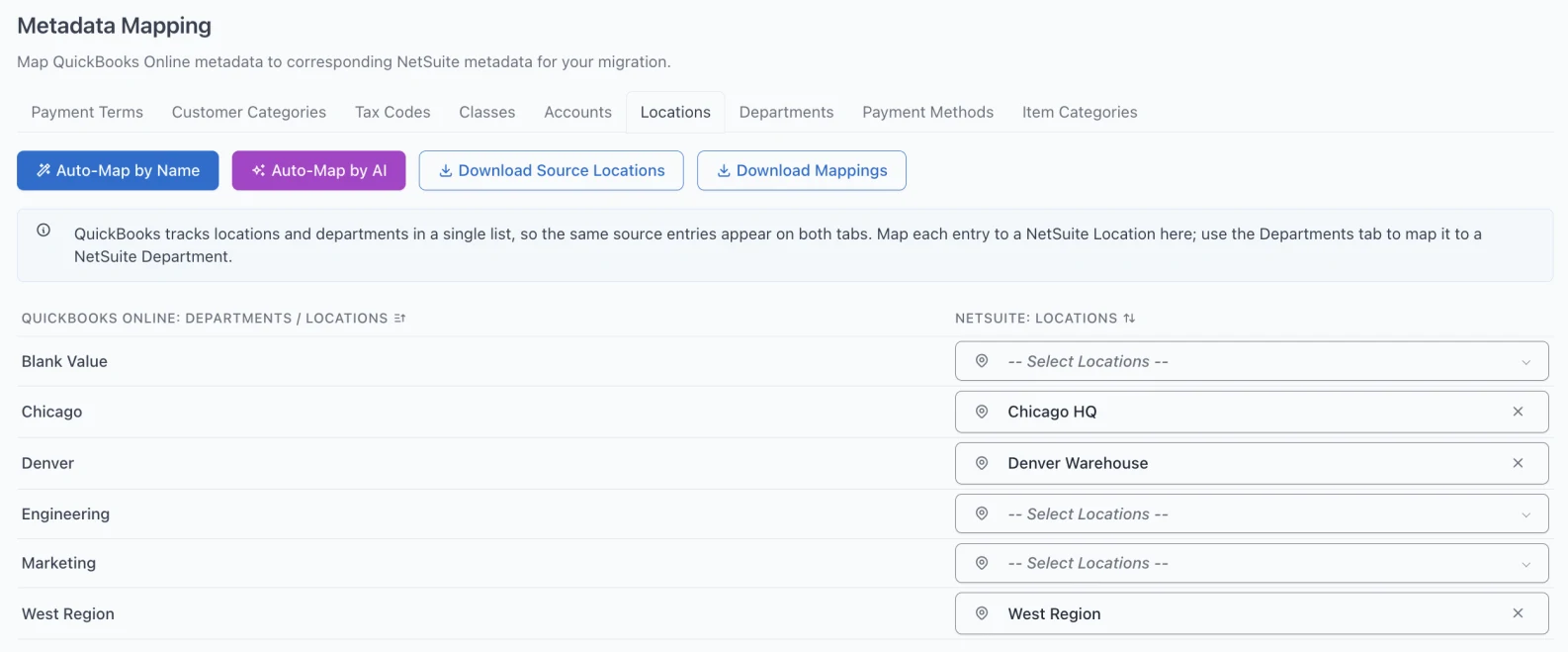
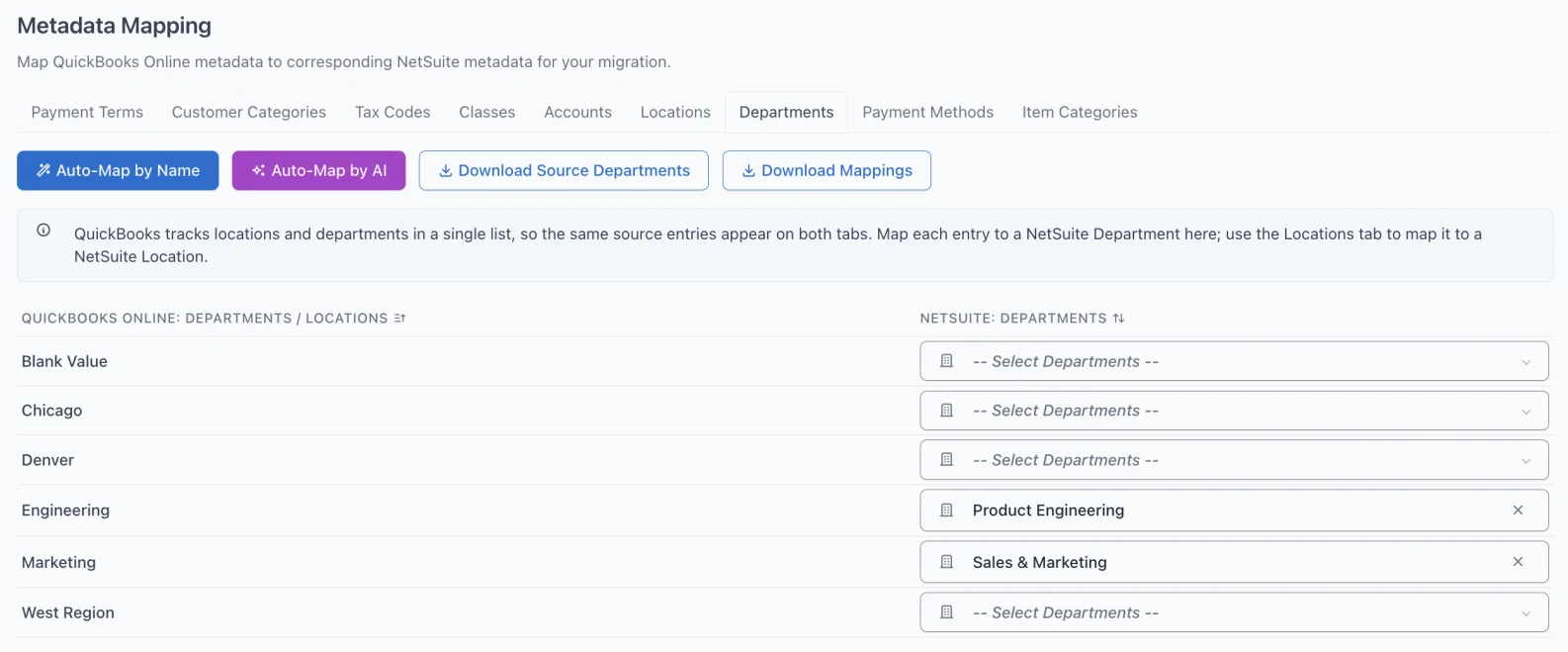
Values you map are written to both the transaction and its lines, so NetSuite has what it needs whichever level a report reads from, and whichever form your account uses.
Frequently asked questions
What is the difference between department, location, and class in NetSuite?
They are three independent segments, each with its own list of values and its own standard reports. Department covers teams or cost centres, location covers physical places, and class is a flexible third option usually used for business lines or programs. They are not interchangeable: a value filed under location will never appear on a departmental report, so the segment you choose during a migration decides which reports the balance can appear on.
Does NetSuite have classes like QuickBooks Online?
Yes, but it is not a straight swap. NetSuite has class alongside department and location, so a QuickBooks class does not have to become a NetSuite class. Map it to whichever segment matches how the business actually uses the values, not to the segment with the matching name.
Can one QuickBooks location list map to both NetSuite locations and departments?
Yes, and it is often the right thing to do. Because QuickBooks Online offers a single field for this, one list frequently holds place names and team names together. Route the place names to NetSuite locations and the team names to NetSuite departments, value by value, rather than sending the whole list to one segment.
Why does NetSuite say “Please enter value(s) for: Location”?
Location is required on the transaction, which is what happens when Multi-Location Inventory is enabled. QuickBooks supplies at most one location per transaction, so any record with no location, or whose location was left unmapped, has nothing to write and will not save. A custom transaction form can require location on every line as well, which is a form-level setting your account preferences will not reveal.
Can QuickBooks Online assign a different location to each line?
No. QuickBooks Online holds one location for the whole transaction. Only classes can vary line by line, and only when the Assign classes preference is set to one class per row rather than one per transaction.
Why is my NetSuite departmental report empty after migrating from QuickBooks?
Usually one of two reasons. Either the values never reached the transaction lines, so there is nothing for a segmented report to group by, or they were mapped to a different segment than the report reads from, which is what happens when place names are routed to department instead of location.